Keeping your calendar up to date is an important part of managing your business on Rover. In this article, we'll talk about how to use Rover's calendar feature to manage your availability for specific dates and services.
If you plan to be unavailable for a temporary length of time, you can also set yourself as Away for each service. To learn more, check out this article.
Rover app
Computer
Set fixed availability by service
Rover app
- White: Fully available (with 0 bookings)
- Yellow: Partially booked
- Red: Fully booked
- Grey, diagonal slashes: Unavailable
To edit your availability from the Rover app:
- Tap Calendar.
- To edit a specific day, tap the date you need to update then select Edit my availability. From here, you can edit capacity and availability.
- To edit availability for multiple consecutive days, tap the start and end date, then select mark the dates as available or unavailable.
- When you're finished editing your availability, select Save changes.
Note: You can only edit capacity for one day at a time.
Computer
1. Sign in to your Rover account and select Calendar from the dropdown menu under your name.
2. Select the days you want to edit on your calendar. To manage availability for multiple dates at once, click and drag your mouse to select a date range. Select Mark all services as unavailable.
Set fixed availability by service
If you only want to offer specific services on certain days, you can also manage this in the Calendar section of your account.
Rover app
- Tap Calendar.
- In the upper right corner of the screen, tap the gear icon (iOS). For Android, tap the three-dotted icon, then Settings.
- For the service you would like to update, tap Daily availability.
- Tap the usual days and times that you'll be available.
Computer
In your Calendar, on the left side of your screen, select the arrow next to a service and check the boxes next to the days you're available.
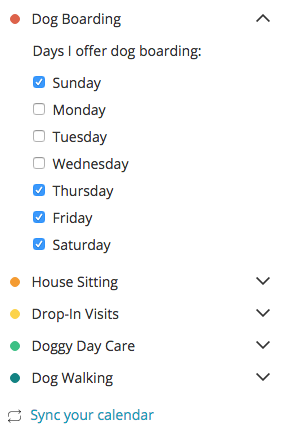
Note: If you frequently don't book requests you receive for days you're available, some of your services may be automatically set to Away mode. This is why it's important to keep your calendar up to date. To learn more about keeping your profile and services active, visit check out this article.
What else can I do with my calendar?
You can sync your Rover calendar with iCal or Google Calendar to view upcoming requests, stays, and Meet & Greets.
Web
- Navigate to your calendar by selecting your name in the upper right corner of the screen. Select Calendar.
-
Select Sync your calendar on the left side of the page.
To look at a different month, select the left and right arrows near the top of the calendar. You can always jump to today’s date by selecting Today.

App
- Tap Calendar, then select the gear icon at the top of your screen.
- Tap Connect Google Calendar or other calendars.
- Set preferences for how you want bookings to appear on your calendar, then tap Continue.
- Tap Connect.
- Tap Done when finished.
You can disconnect a calendar from your Rover account at any time by selecting the gear icon on the Calendar screen. Choose the calendar you want to remove, then tap Disconnect.